Starting October 21, most academy content will be available for registered travel agents only - you'll be asked to sign in with your Expedia TAAP account to access it.
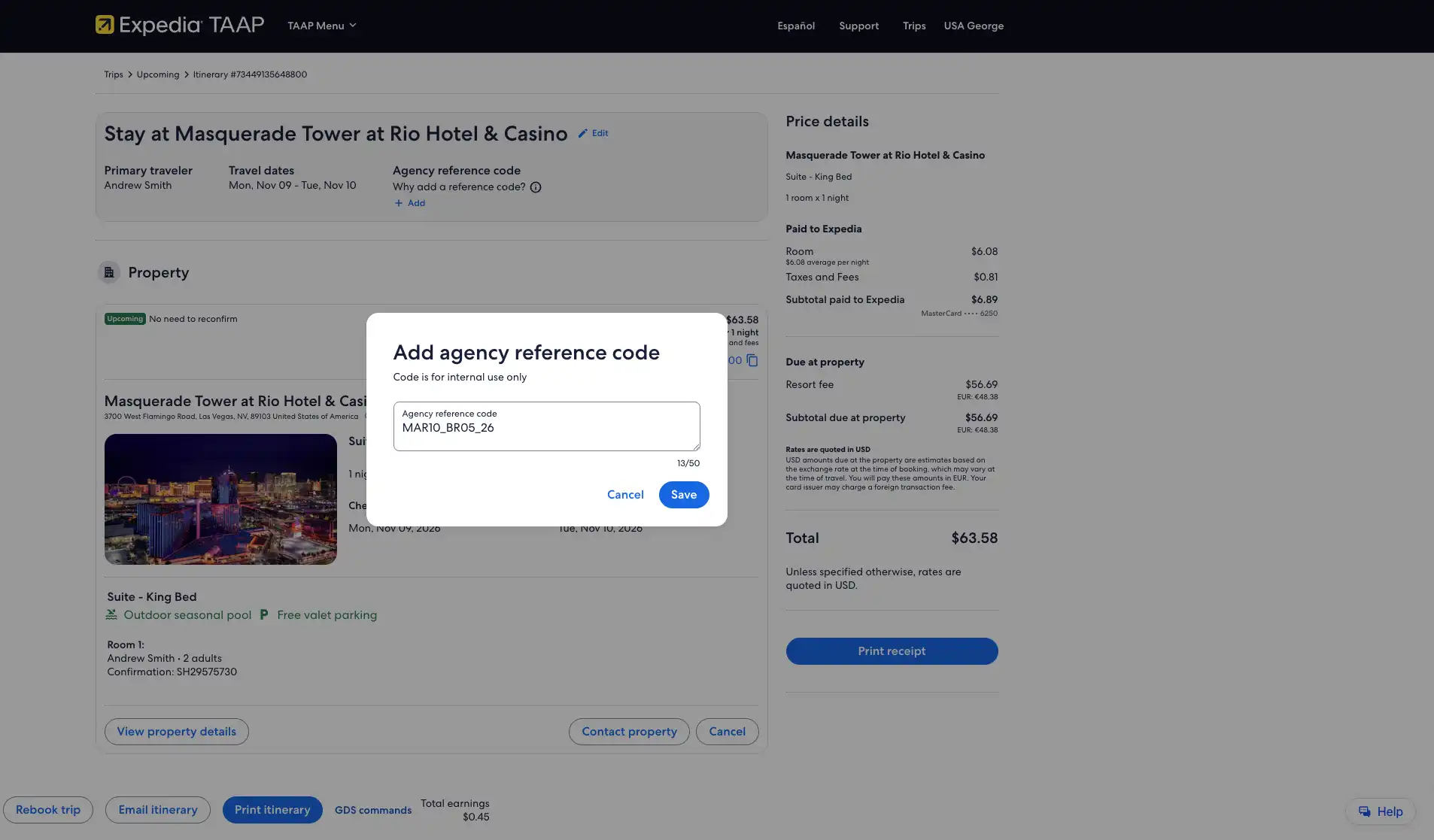
An agency reference code lets you apply your own internal identifier to any Expedia TAAP bookings, so you can track, manage, and reconcile them in line with your agency's processes.
Before you begin:
Decide what type of internal identifier to use (e.g. cost center, client ID, invoice number, or an internal booking ID).
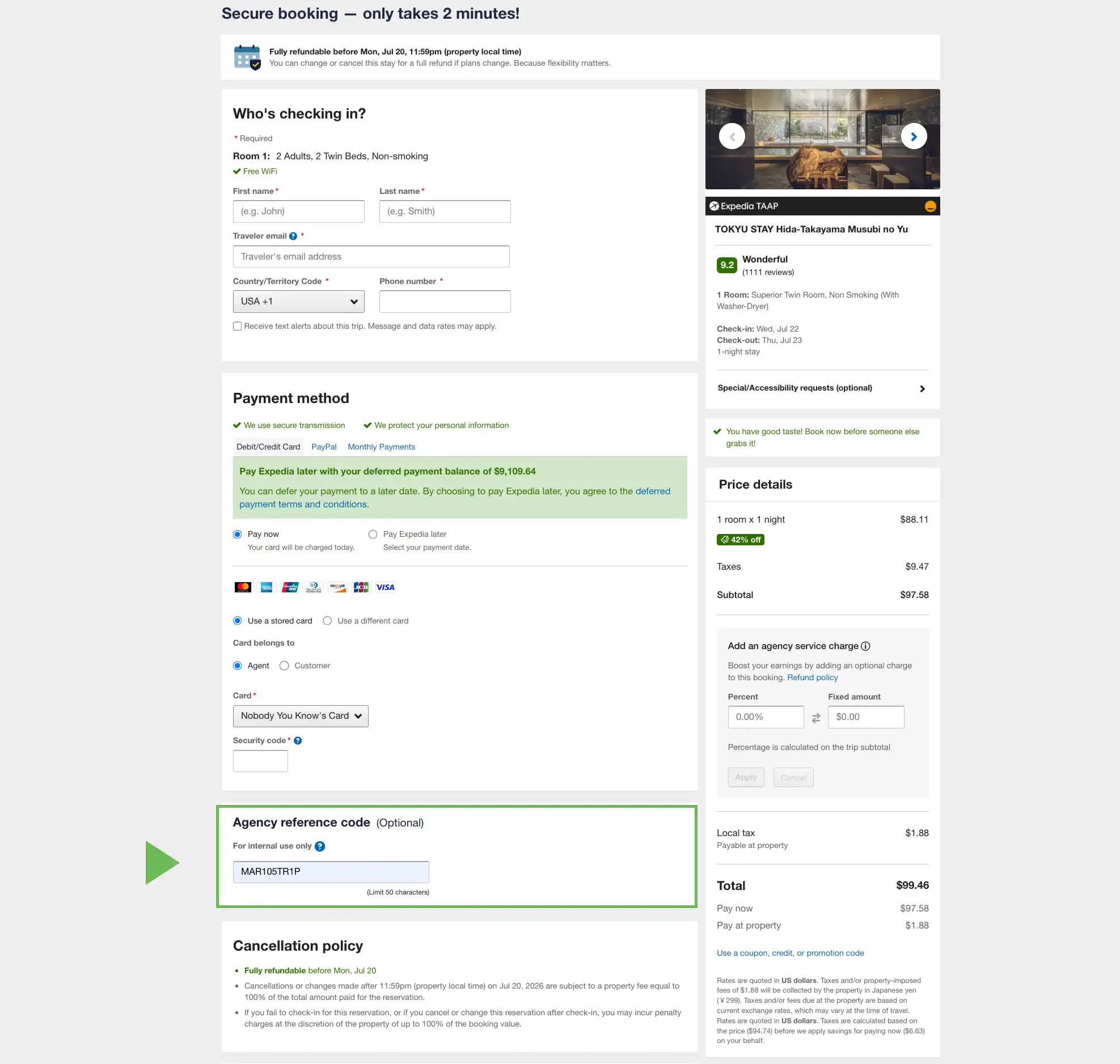
On the checkout page, look for the agency reference code free-text field, and enter your chosen internal identifier. The field allows up to 50 characters.
Tip
You can use a cost centre, client ID, invoice number, or an internal booking ID—whatever works best for your agency’s internal processes.
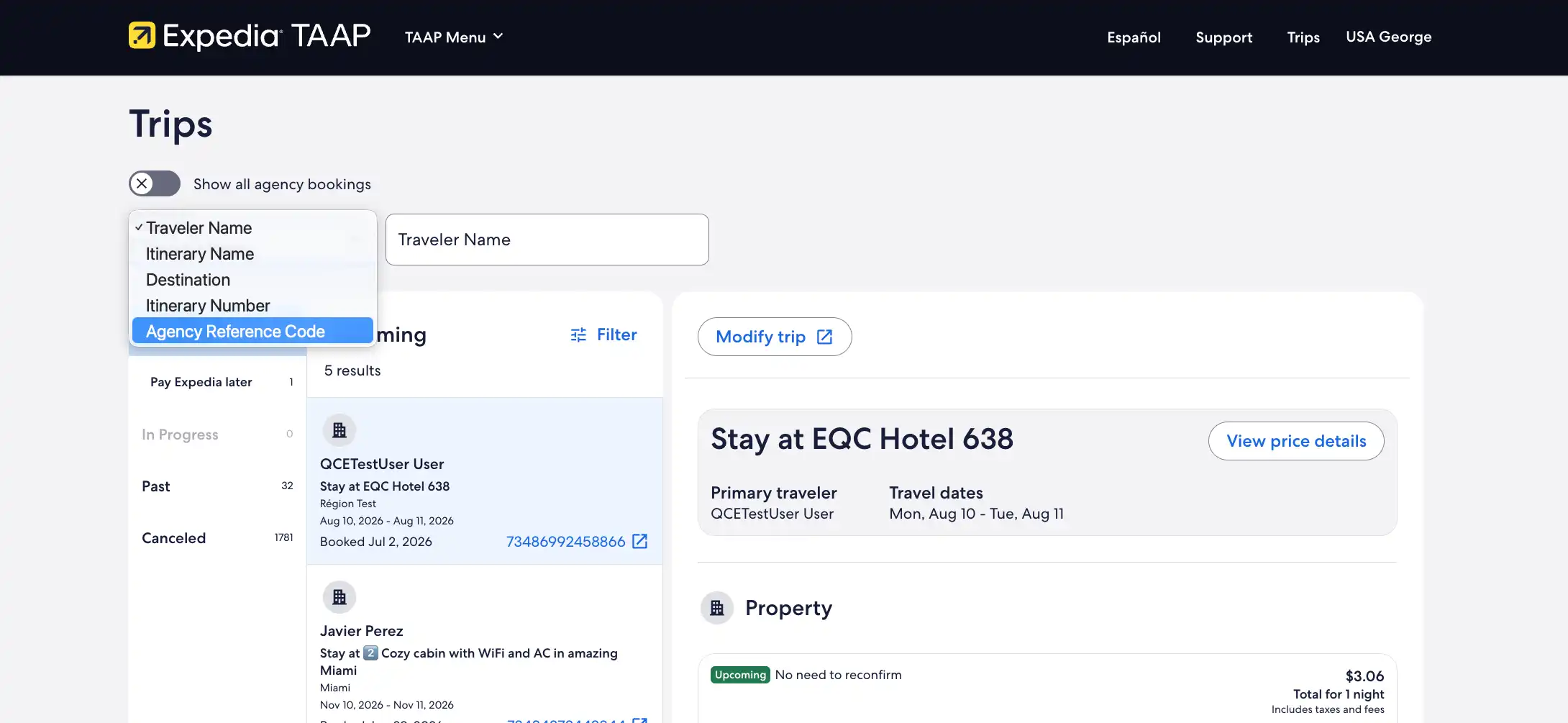
Find and open the booking you want to update. You can easily locate trips that have an existing agency reference code by simply selecting the relevant option from the drop-down menu. Add your search term and your trip list will automatically update to match your search parameters.
The agency reference code is not assigned or generated by Expedia TAAP — it is an identifier you choose based on your agency's own internal processes. You can use anything that works for your team, such as a cost centre, client ID, invoice number, or internal booking reference.
Where can I see the agency reference code after I add it to my booking?
When an agency reference code has been added to a booking, you can see it in:
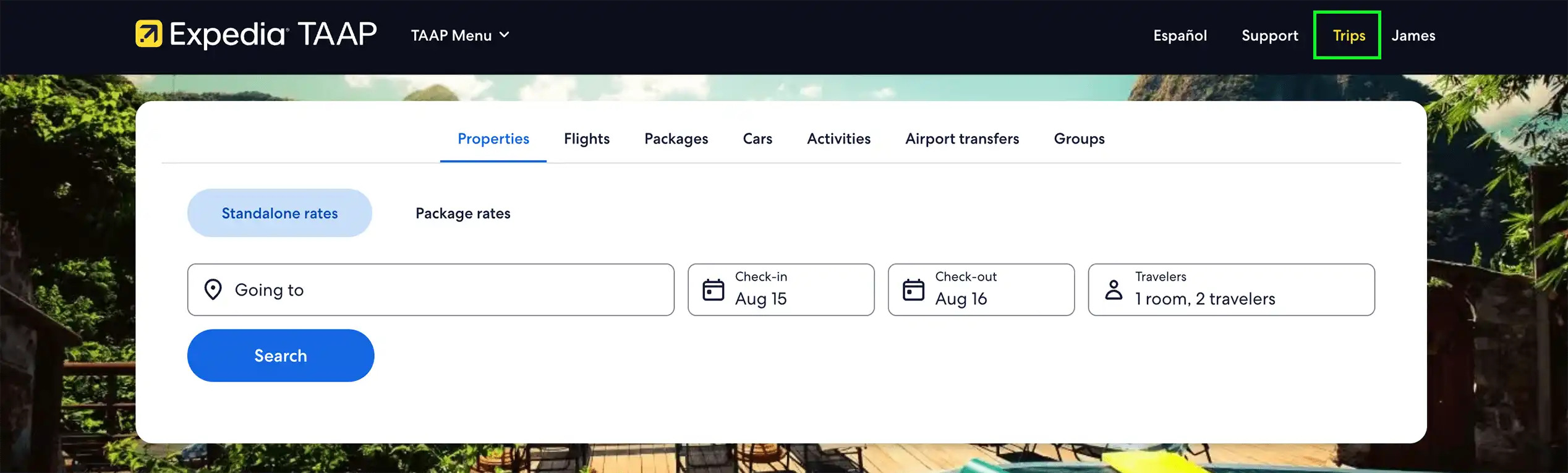
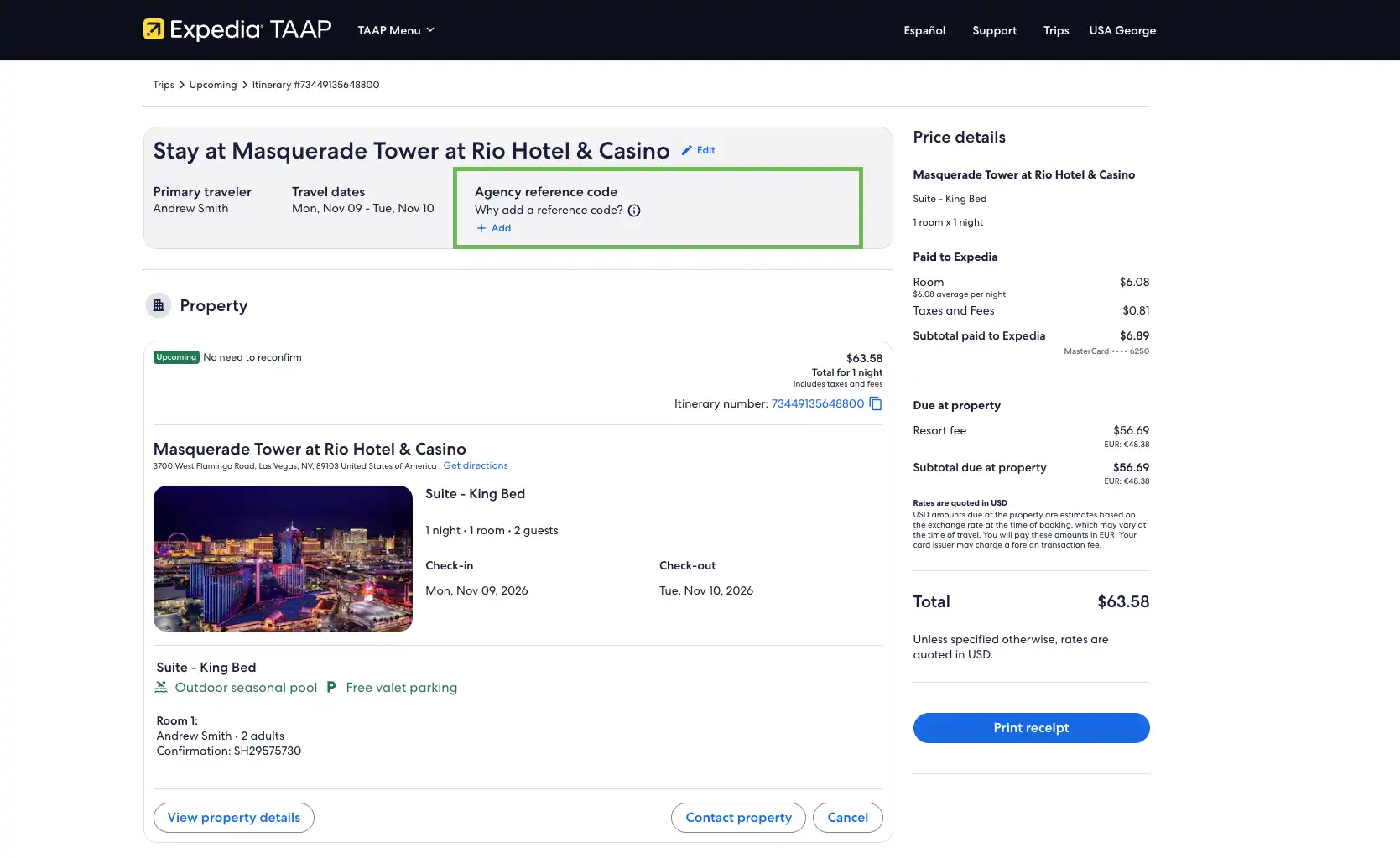
The Trips page, on the itinerary view for that booking.
Earnings statements and report downloads in the TAAP reporting tool.
Your back-office operating system, if your agency is integrated with the Back-office API (this is not available via the XAP API).
Can I add an agency reference code for non-lodging bookings (flights, cars, etc.)?
Yes. You can add an agency reference code to property, flights, car rental, activities, packages, and airport transfers. Please note that available travel products will vary by agency and point of sale.
Is there a character limit?
Yes. The agency reference code field allows up to 50 characters, including letters, numbers, and special characters.
Can I add multiple agency reference codes to one booking?
No. You can only add one agency reference code per itinerary.
Will travellers see the agency reference code?
No. The agency reference code does not appear on confirmation emails or any other client-facing touchpoints.
Can I search or filter by agency reference code in Trips or reports?
You can search and filter by agency reference code on the Trips page using the filter at the top of the page. The agency reference code also appears in:
The booking itinerary view
Earnings statements (as an additional column)
Report downloads
Please note: searching by agency reference code is not currently available in the TAAP reports tool.
Will the Back-office API deliver agency reference code information?
Yes. If your agency is integrated with the Back-office API, the agency reference code data will feed through to your operating system. If you are using the XAP API, this will not be possible.
Can I use the agency reference code when contacting agent support?
No. When seeking support for a booking, you should continue to provide the booking itinerary as the main identifier. The agency reference code is for your agency’s own tracking purposes and is not visible to support teams to locate bookings.