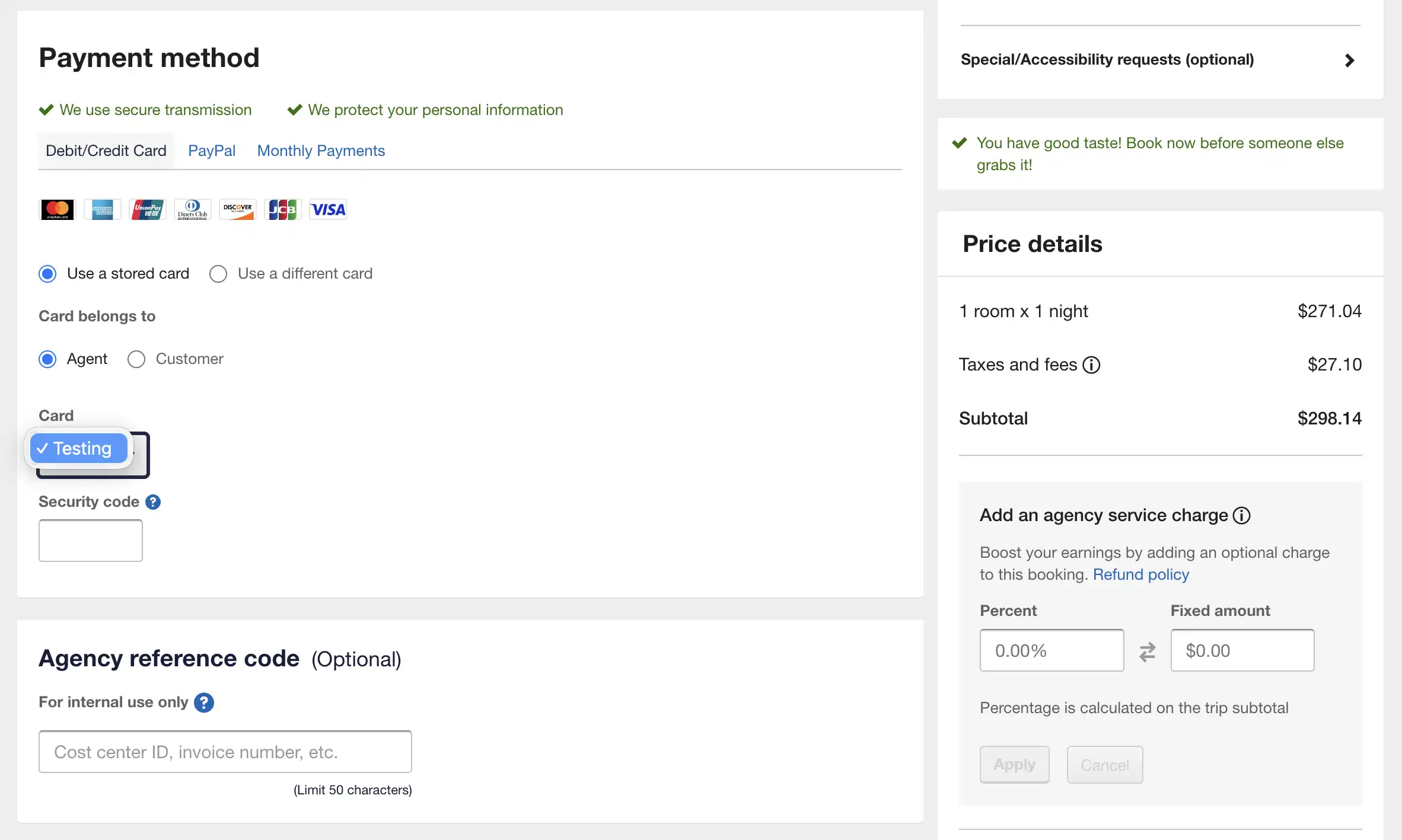
Adding and saving a payment method
Did you know you can save up to 5 debit or credit cards to your Expedia TAAP profile? Using a stored payment mehtod increases your efficiency since you don’t have to re-enter the details at checkout.
Here’s how:
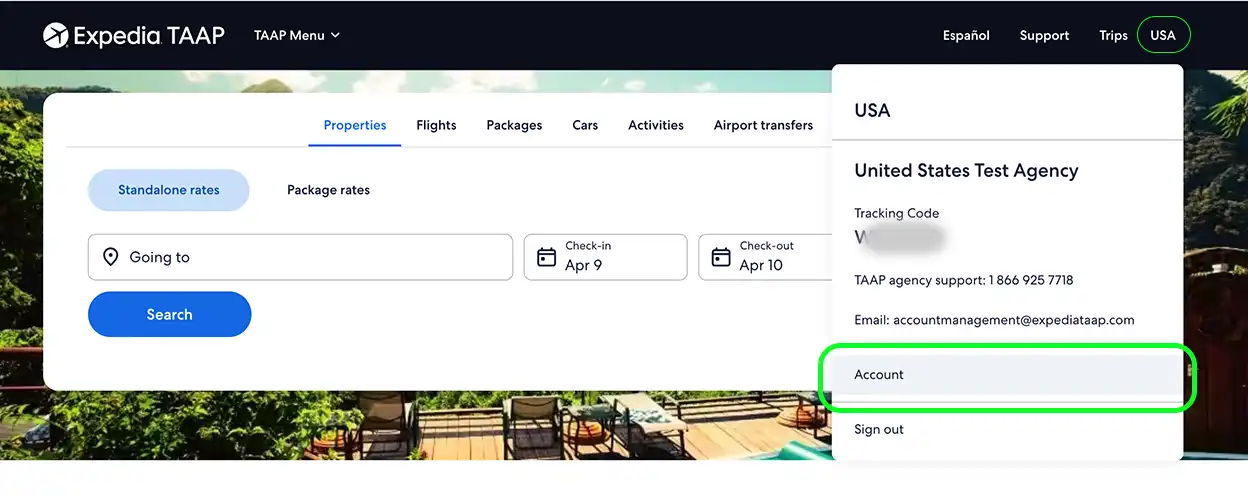
1. Go to your Account
In the Expedia TAAP top navigation bar, click on your name and select Account from the menu.
2. Select 'Payment Methods'
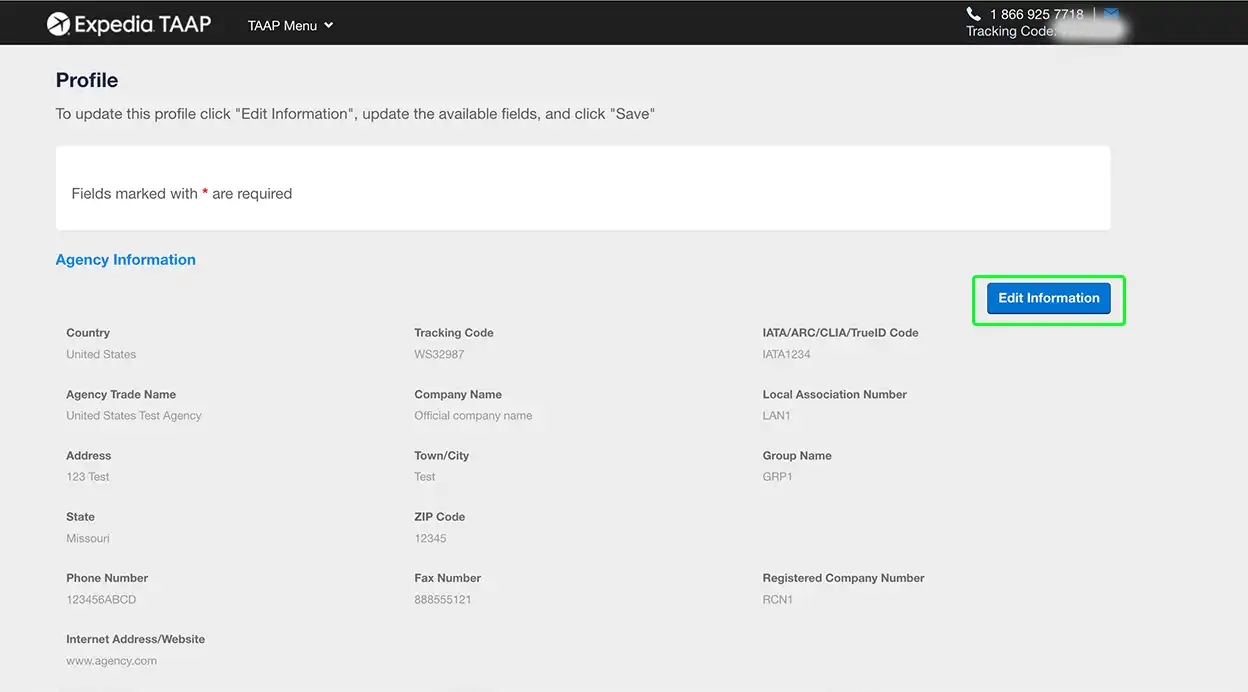
3. Payment cards
Adding a new card
To add a new card follow the prompts and enter the required details. Click Save.

Deleting a card
From the payment methods module, select Delete next to the card you want to remove. Follow the prompts and confirm you wish to proceed with the removal of the selected card. The card will no longer be saved in your payment methods.

4. Direct debit accounts
In select points of sale you may be able to pay with a bank transfer. You can save up to 5 direct debit accounts for a faster checkout. Accounts must be from SEPA countries.
Here's how:
Adding a bank account
Enter the account nickname, account holder name, IBAN, billing address, city and postal code.

Deleting a bank account
From the payment methods module, select Delete next to the account you want to delete. Confirm that you want to delete the direct debit account by selecting Delete again. The account will no longer be saved in your payment methods.
5. Success!
You can now secure bookings faster by selecting one of your stored credit cards or accounts (if available) at checkout.